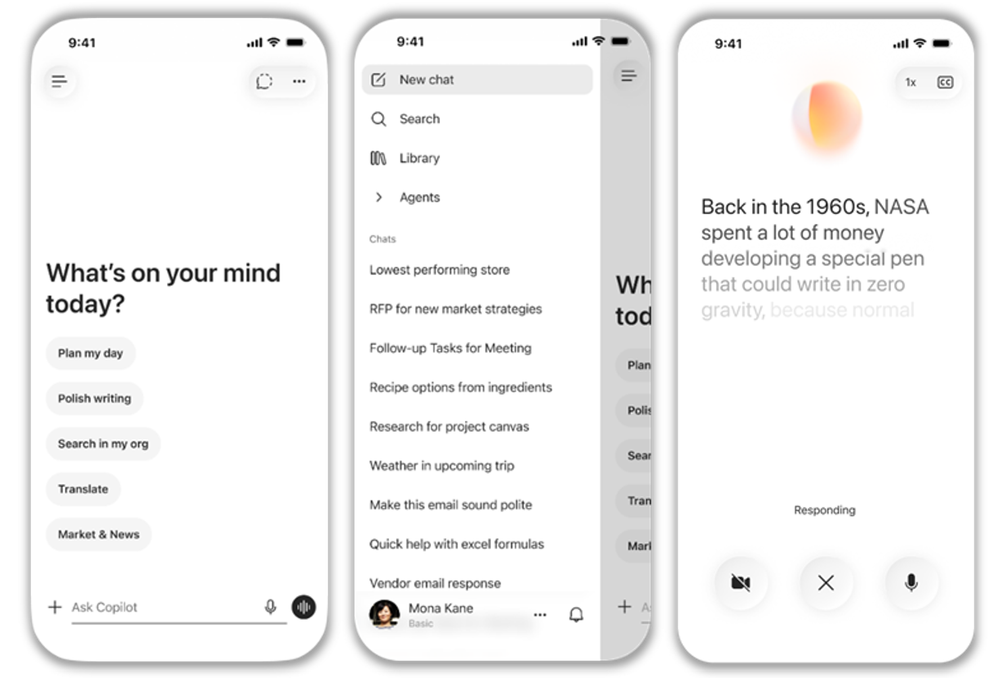
Microsoft Copilot is a family of AI assistant experiences, not one identical app. The free Copilot app focuses on general questions and web tasks; Microsoft 365 Copilot works within productivity apps and work data under separate subscription and organizational rules. As Microsoft updates the app, menus and feature access can shift. This guide explains the main experiences, tools, limits, privacy and best-fit tasks.
Microsoft Copilot image by KK IN HK, 2026, via Wikimedia Commons, CC BY-SA 4.0. Source file.
The main Copilot experiences
With a personal Microsoft account, the Copilot app can answer questions, draft content, search the web, work with text, images and voice, and support creative tasks such as image generation. Microsoft 365 Copilot adds assistance in apps such as Word, Excel, PowerPoint, Outlook and Teams, helping with documents, spreadsheets, presentations, email and meetings. Access to work content depends on the licence and organization permissions.
What it can help with
For everyday use, Copilot can explain topics, outline plans, summarize or rewrite text, brainstorm and answer questions with links to web sources. In Microsoft 365, it can draft an email, summarize a thread, prepare a presentation, work with spreadsheet data or organize notes. Eligible users can use voice and Vision features to discuss what is on screen or in view. The consumer app and Microsoft 365 Copilot do not have identical capabilities or data protections.
Plans, usage and availability
There is a free consumer Copilot experience. Paid access may come through eligible Microsoft 365 plans or organizational licences, with AI credits and usage limits varying by plan, feature and system conditions. Read Microsoft’s current explanations of free Copilot versus Microsoft 365 Copilot and AI credits and limits. Check plan details for your country and account.
Privacy: account type matters
Microsoft distinguishes personal accounts from work or school accounts. For personal Copilot, prompts and personalization are governed by Microsoft’s consumer terms and privacy choices. For organizational accounts, Microsoft says the organization’s security, privacy, compliance and administrative controls apply. Confirm the signed-in account before using workplace data. Review the current Copilot privacy overview. Microsoft also has a version transition for its Copilot app; users of older versions should check the migration guidance and preserve eligible chats before deadlines.
How to get reliable results
Tell Copilot what you need, who will use the result and which sources or files to rely on. For current events, ask it to search the web and open the citations. When using work data, check that the information is within your access rights and permitted by your organization. Review generated emails, formulas, slides and summaries before sharing.
Strengths and limitations
Copilot is convenient for people already using Windows and Microsoft 365, especially when their plan includes the features they need. However, it can make factual errors, miss context or misread speech and images. Availability, credits and interface labels change, and several products share similar names. Check plan, account type and privacy settings before relying on a feature.
Who should consider Copilot?
Copilot may suit people who want an assistant close to Microsoft apps and workflows. For research, compare its citations with Perplexity; for Google Workspace tasks, compare Gemini; and for general drafting, compare ChatGPT or Claude. Try the same task across products and assess accuracy, time saved, privacy controls and actual usage limits.
Like what you read? Help BoldVoices.in keep independent journalism going.
Manage Consent
To provide the best experiences, we use technologies like cookies to store and/or access device information. Consenting to these technologies will allow us to process data such as browsing behavior or unique IDs on this site. Not consenting or withdrawing consent, may adversely affect certain features and functions.
Functional
Always active
The technical storage or access is strictly necessary for the legitimate purpose of enabling the use of a specific service explicitly requested by the subscriber or user, or for the sole purpose of carrying out the transmission of a communication over an electronic communications network.
Preferences
The technical storage or access is necessary for the legitimate purpose of storing preferences that are not requested by the subscriber or user.
Statistics
The technical storage or access that is used exclusively for statistical purposes.The technical storage or access that is used exclusively for anonymous statistical purposes. Without a subpoena, voluntary compliance on the part of your Internet Service Provider, or additional records from a third party, information stored or retrieved for this purpose alone cannot usually be used to identify you.
Marketing
The technical storage or access is required to create user profiles to send advertising, or to track the user on a website or across several websites for similar marketing purposes.